【WIN7】WIN7怎么安装HP LaserJet 1012?
1、开始——设备和打印机
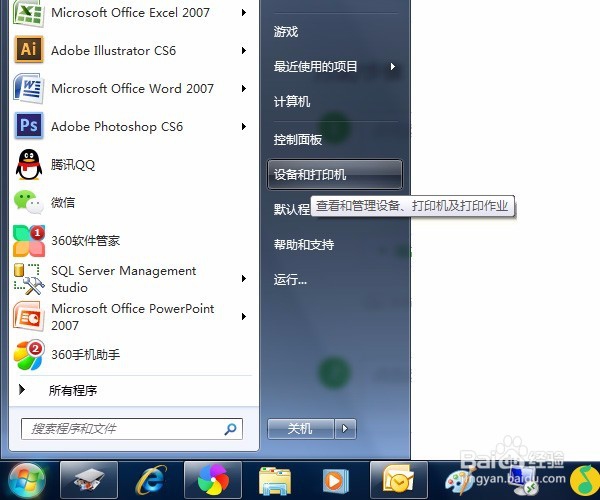
2、点击【添加打印机】

3、点击【添加本地打印机】

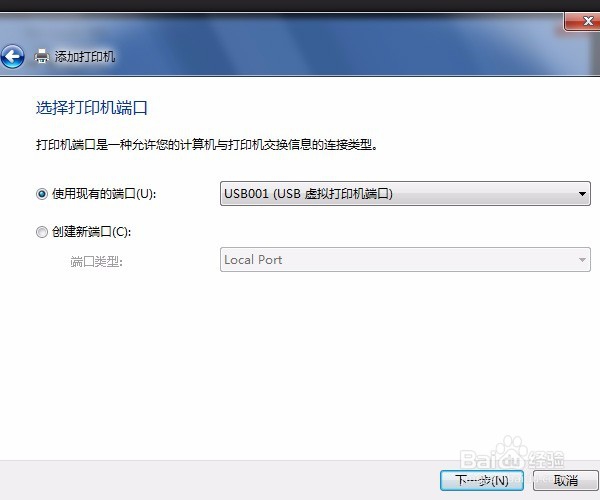
4、选择USB端口,HP1012这里显示的是D打头的USB端口。
因为是帮别人弄的这里就截取我自己电脑上的图了
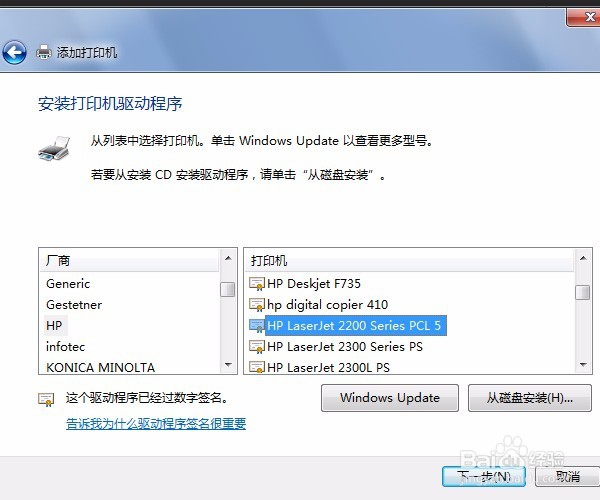
5、选择HP,选择【HP LaserJet 2200 Series PCL 5】。
6、点击【下一步】
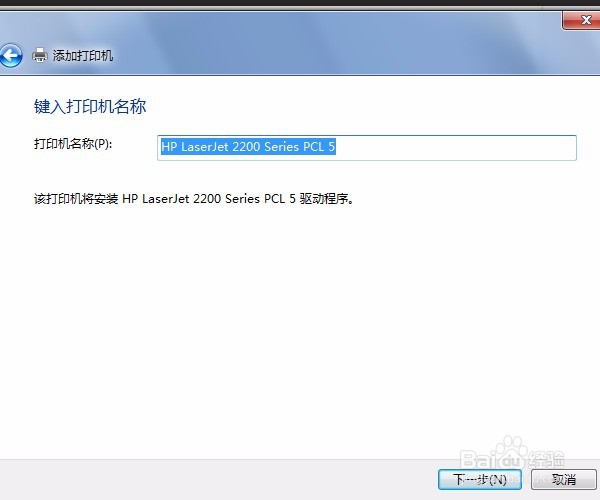
7、如果只是本地打印,那么选择【不共享这台打印机】,下一步。

8、点击【打印测试页】,可以发现测试通过。
然后点击【完成】

阅读量:123
阅读量:96
阅读量:125
阅读量:172
阅读量:58