PS怎么批量导入xmp预设
1、选择要导入的xmp格式预设。

2、右键添加到压缩文件。

3、选择zip格式,点击确定压缩。

4、接着打开PS。

5、点击“滤镜-camera raw 滤镜”。

6、点击右边的预设,右键选择导入配置文件和预设。

7、选择刚刚压缩的zip文件。

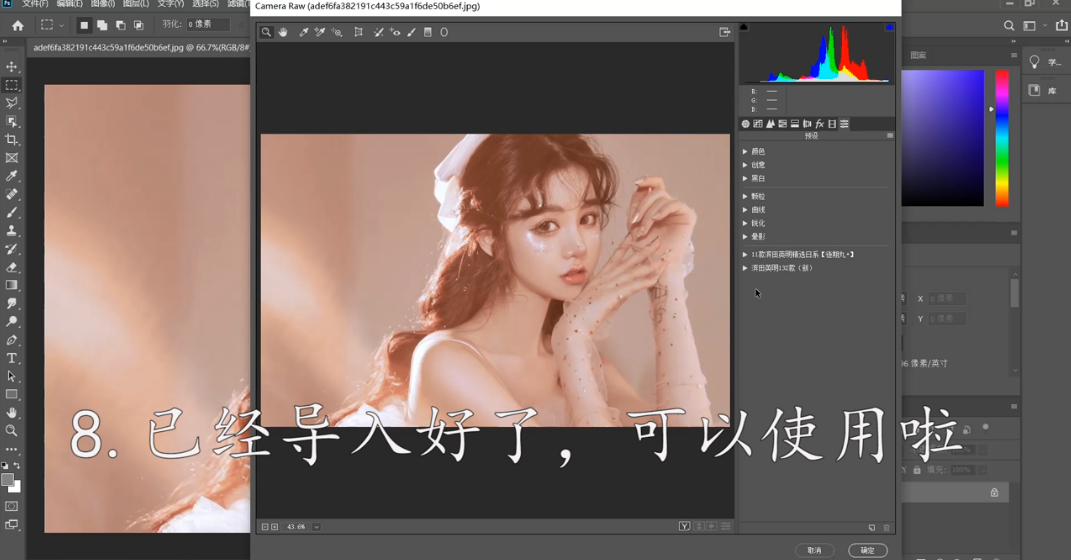
8、这样即可导入完成。
阅读量:83
阅读量:126
阅读量:166
阅读量:88
阅读量:167
1、选择要导入的xmp格式预设。
2、右键添加到压缩文件。
3、选择zip格式,点击确定压缩。
4、接着打开PS。
5、点击“滤镜-camera raw 滤镜”。
6、点击右边的预设,右键选择导入配置文件和预设。
7、选择刚刚压缩的zip文件。
8、这样即可导入完成。